- Install "smbclient (including Samba)" and "cups" related packages using APT.
- I share the printer on windows machine as "EE-Print". I connect to it through samba client using following command:
$ smbclient -L EE-Print
Enter swg's password:
Domain=[EE-PRINT] OS=[Windows 5.1] Server=[Windows 2000 LAN Manager]
Sharename Type Comment
--------- ---- -------
E$ Disk Default share
IPC$ IPC Remote IPC
print$ Disk Printer Drivers
SharedDocs Disk
G$ Disk Default share
Printer3 Printer HP LaserJet P2050 Series PCL6
Printer4 Printer Network Printer
Printer5 Printer HP LaserJet 5
F$ Disk Default share
ADMIN$ Disk Remote Admin
C$ Disk Default share
Samsung Printer Samsung SCX-4300 Series
Domain=[EE-PRINT] OS=[Windows 5.1] Server=[Windows 2000 LAN Manager]
Server Comment
--------- -------
Workgroup Master
- Now we open the browser and open the CUPS web-interface by typing in the following URL:
http://localhost:631/
- Now add a new printer, give a name to it and Set the device type to "Windows Printer via SAMBA".
- Set the URI which includes the name that was listed earlier by smbclient, for example something like "smb://EE-Print/Samsung". If the printer is passworded, you would use something like "smb://username:password@EE-Print/Samsung".
- You need to install linux driver for the printer "Samsung SCX-4300". The linux driver can be downloaded from the Samsung's official site. Untar the pack and run the "autorun" script file as a root. It has a gui interface which guides through various installation process. Currently install it as a local usb based printer.
- Once you have installed the driver, restart the CUPS server and click on "modify properties" option for the printer. When it asks for a driver, then select "Samsung scx-4300 series" from the drop down menu. It will now ask for the root username and password. Remember to enter "root" in the username field and give root password in the password field.
- Now you should be able to print your test page.
Showing posts with label Printing. Show all posts
Showing posts with label Printing. Show all posts
Monday, June 7, 2010
Printing to a Samsung SCX-4300 printer shared on Windows XP from Debian Lenny
I got a Samsung SCX-4300 multi-function printer at my office. Currently, it is connected to a windows machine through a USB cable. I wanted to be able to use it as a network printer for my Debian laptop. After a bit of search on google, I could find a solution that worked for me. I must thank Anupam for helping me out during this process. I derived my understanding from this page and this article summarizes the steps that I followed.


Sunday, March 14, 2010
Printing text files : a2ps
Usually it is easier to convert a text file directly into PS files and then into a pdf file.
$ a2ps -R -1 -o abc.ps abc.cpp
$ ps2pdf abc.ps abc.pdf
-1 : Predefined layout: 1 x 1 portrait, 80 chars/line, major rows (i.e. alias for `--columns=1 --rows=1 --portrait --chars-per-line=80 --major=rows').
-o : Output file
$ a2ps -R -1 -o abc.ps abc.cpp
$ ps2pdf abc.ps abc.pdf
-1 : Predefined layout: 1 x 1 portrait, 80 chars/line, major rows (i.e. alias for `--columns=1 --rows=1 --portrait --chars-per-line=80 --major=rows').
-o : Output file
Saturday, August 16, 2008
Printing on a HP LaserJet over the network using Linux
The desktop given to me is connected to a printer HP Laserjet 2200 over network with an IP address. I wanted to configure it on Fedora. I already know about the fact that HP printers are well supported on Linux. This post might help you if are in similar kind of situation, that is, you want to connect to a network printer from a linux box over LAN. This post is only for the sake of convenience. If things don't work out and you need more information then you should visit this link.
Lets first see the system configuration.
$ uname -a
Linux localhost.localdomain 2.6.25.14-108.fc9.x86_64 #1 SMP Mon Aug 4 13:46:35 EDT 2008 x86_64 x86_64 x86_64 GNU/Linux
So, basically I am using FC9 with x86_64 processor. This much is good enough for us.
Check if cups daemon is running. You can check at System->Administration->Services->Cups. It should be running. You can also check this on console using following command:
$ sudo /sbin/chkconfig --list|grep cups
cups 0:off 1:off 2:on 3:on 4:on 5:on 6:off
So, Cups is running on run-level 3, 4 and 5. If it is not running, then you should make it run first. Its not dificult and following command should do the job.
$ sudo /sbin/service cups start
or
$ sudo /sbin/chkconfig --level 345 cups on
Now, check if hplip is available on your system.
$ rpm -qa|grep hplip
hplip-2.8.2-2.fc9.x86_64
hplip-gui-2.8.2-2.fc9.x86_64
In case they are not present, use Yum to get the required packages:
$ sudo yum install hplip hplip-gui
If HPLIP is already installed then try running hp-setup to configure your printer.
$ sudo hp-setup
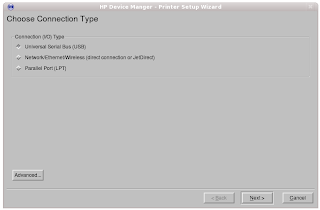
I choose the second option 'Network connection'. Then click on next.
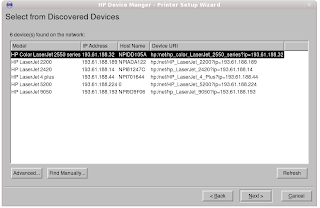
It lists the printers available on the network. I choose the the HP LaserJet 2200 that is assigned to me and then click next.
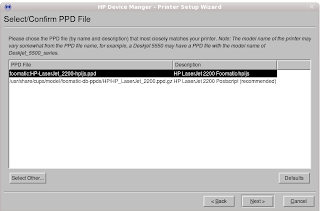
It asks me to select a suitable PPD file available in the list. Usually you should select the one that closely matches the description of the printer. In this case I retain the first selection.
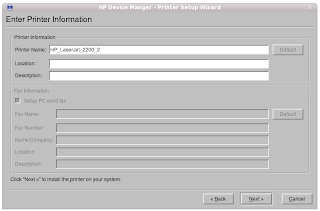
Here I add some description to my printer and click next. On the next screen it sends a test page for printer. It starts working !! I did not believe that the things would be this much simple. Because I remember spending days on getting my printer work on linux. I think those days are gone now. The life has certainly become more comfortable with linux.
Lets first see the system configuration.
$ uname -a
Linux localhost.localdomain 2.6.25.14-108.fc9.x86_64 #1 SMP Mon Aug 4 13:46:35 EDT 2008 x86_64 x86_64 x86_64 GNU/Linux
So, basically I am using FC9 with x86_64 processor. This much is good enough for us.
Check if cups daemon is running. You can check at System->Administration->Services->Cups. It should be running. You can also check this on console using following command:
$ sudo /sbin/chkconfig --list|grep cups
cups 0:off 1:off 2:on 3:on 4:on 5:on 6:off
So, Cups is running on run-level 3, 4 and 5. If it is not running, then you should make it run first. Its not dificult and following command should do the job.
$ sudo /sbin/service cups start
or
$ sudo /sbin/chkconfig --level 345 cups on
Now, check if hplip is available on your system.
$ rpm -qa|grep hplip
hplip-2.8.2-2.fc9.x86_64
hplip-gui-2.8.2-2.fc9.x86_64
In case they are not present, use Yum to get the required packages:
$ sudo yum install hplip hplip-gui
If HPLIP is already installed then try running hp-setup to configure your printer.
$ sudo hp-setup

I choose the second option 'Network connection'. Then click on next.

It lists the printers available on the network. I choose the the HP LaserJet 2200 that is assigned to me and then click next.

It asks me to select a suitable PPD file available in the list. Usually you should select the one that closely matches the description of the printer. In this case I retain the first selection.

Here I add some description to my printer and click next. On the next screen it sends a test page for printer. It starts working !! I did not believe that the things would be this much simple. Because I remember spending days on getting my printer work on linux. I think those days are gone now. The life has certainly become more comfortable with linux.
Subscribe to:
Posts (Atom)

 Posts
Posts

