Even though I myself use Debian, I suggest Fedora to others. Its because, most of these people are interested in packages than the OS. Fedora comes with all the latest packages and has a user friendly interface for most configuration tasks. Though I think, ubuntu is a good competitor to Fedora in this aspect. Since I have spent quite a lot of time with Debian (say 3 years), I find Debian more stable and easier to manage than other distros. Most of the available packages on Etch just work fine with no hiccups. The only drawback seems to be the fact these packages are outdated. If you are really not keen on new features and happy with the available features, then Debian Etch is the right choice. Because its really stable and it works without any problem on most of the systems. But many a times, you just can't do without newer packages. One way would be to go for Debian testing or unstable repositories. But I would be prefer a stable system with less number of new packages than an unstable system with many new packages. This is where APT Pinning comes into picture. This is about finding the right combination of all the repositories. Here the administrator can consciously decide where to put the line between stability and the availability of new packages.
More information on APT - Pinning
Friday, September 26, 2008


Could not start kstartupconfig on Debian Etch 4.0
Today one of my fellow labmates asked me whether he can use KDE on his laptop. I installed debian on his system sometime back. If you are installing on a new system, then I would suggest you to get a Debian KDE CD image, but if you want to install kde on your existing debian system that you installed using default Debian CD image, then you can read the rest of the article:
$ apt-get install kdm kde-core
However when I log out and login again by choosing KDE as my window manager, I get following error:
could not start kstartupconfig. Check your installation.
One solution that worked for me is this:
$ sudo chown -R username:users /home/username
'username' is the login name for the current user. After that I logged out and logged in again to get a working KDE session.
$ apt-get install kdm kde-core
However when I log out and login again by choosing KDE as my window manager, I get following error:
could not start kstartupconfig. Check your installation.
One solution that worked for me is this:
$ sudo chown -R username:users /home/username
'username' is the login name for the current user. After that I logged out and logged in again to get a working KDE session.
Monday, September 22, 2008
Resizing image using GIMP
A lot of information is available on web about how to use GIMP and hence I would be very precise and brief in my description. Basically, I am interested in reducing the resolution of the image without changing its print size. For this, you need to remember this formula:
Print size = No. of Pixels / Resolution
So, for different resolution, we need to choose different of pixels so that the size remains same. The formula would be
NoP_1 / Res_1 = NoP_2 / Res_2
So, the new number of pixels for new resolution would be given by
NoP_2 = Res_2 * NoP_1 / Res_1
Load a new image onto GIMP from File -> Open menu and then go to view -> Info Window to know about current size and resolution. Now go to button Image -> Scale Image window and reduce the x and y resolution to a lower value and compute the x size and y size (in pixels) for this new resolution using above formula and change them accordingly. Then save the file in your desired format.
Print size = No. of Pixels / Resolution
So, for different resolution, we need to choose different of pixels so that the size remains same. The formula would be
NoP_1 / Res_1 = NoP_2 / Res_2
So, the new number of pixels for new resolution would be given by
NoP_2 = Res_2 * NoP_1 / Res_1
Load a new image onto GIMP from File -> Open menu and then go to view -> Info Window to know about current size and resolution. Now go to button Image -> Scale Image window and reduce the x and y resolution to a lower value and compute the x size and y size (in pixels) for this new resolution using above formula and change them accordingly. Then save the file in your desired format.
Thursday, September 11, 2008
Editing PDF on Linux
I have been badly looking for a tool that can annotate, highlight a PDF file. Its because I need to read a lot of technical papers and I love to highlight the main points in that paper so that I wont' have to search for those key points. I did not want to jump to windows and install a pirated Adobe software to do the job. I wished if open source guys could help me in this regard. After saying that let me tell you I am desperately waiting for the first release of GNUpdf. Until it comes out, I have been looking for alternatives. Among various solutions, I would talk about only two options that I found useful:
1. PDFedit. The only full-fledged pdf editor available for linux. However, it has many caveats and I hope new releases of this software solve the problems. One of the problems that it does not edit many files saying the document is "read-only". Even though I set the option "allow editing read-only files" in Tools->option, still it does not work. Secondly, pdfedit freezes for few seconds during highlighting text.
2. Xournal. It seems to be a better option for highlighting and annotating PDF files. This page talks about configuring xournal for highlighting function. The interface is smooth and things seem to work for the time being. I would post more on this when I try them out.
Some other tools for editing PDF files on Linux are as follows:
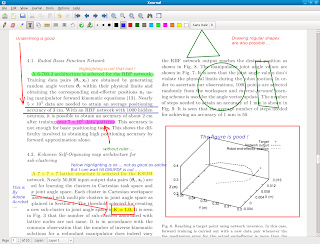
Now that I tried xournal, I must say its pretty good. At least it is not that buggy as compared to PDFedit. But PDFedit has more features and we can expect to get good behaviour in future releases. But as far as highlight and annotating is concerned, I am happy with xournal. Just see a snapshot of xournal window.
1. PDFedit. The only full-fledged pdf editor available for linux. However, it has many caveats and I hope new releases of this software solve the problems. One of the problems that it does not edit many files saying the document is "read-only". Even though I set the option "allow editing read-only files" in Tools->option, still it does not work. Secondly, pdfedit freezes for few seconds during highlighting text.
2. Xournal. It seems to be a better option for highlighting and annotating PDF files. This page talks about configuring xournal for highlighting function. The interface is smooth and things seem to work for the time being. I would post more on this when I try them out.
Some other tools for editing PDF files on Linux are as follows:
Now that I tried xournal, I must say its pretty good. At least it is not that buggy as compared to PDFedit. But PDFedit has more features and we can expect to get good behaviour in future releases. But as far as highlight and annotating is concerned, I am happy with xournal. Just see a snapshot of xournal window.

Saturday, August 16, 2008
Printing on a HP LaserJet over the network using Linux
The desktop given to me is connected to a printer HP Laserjet 2200 over network with an IP address. I wanted to configure it on Fedora. I already know about the fact that HP printers are well supported on Linux. This post might help you if are in similar kind of situation, that is, you want to connect to a network printer from a linux box over LAN. This post is only for the sake of convenience. If things don't work out and you need more information then you should visit this link.
Lets first see the system configuration.
$ uname -a
Linux localhost.localdomain 2.6.25.14-108.fc9.x86_64 #1 SMP Mon Aug 4 13:46:35 EDT 2008 x86_64 x86_64 x86_64 GNU/Linux
So, basically I am using FC9 with x86_64 processor. This much is good enough for us.
Check if cups daemon is running. You can check at System->Administration->Services->Cups. It should be running. You can also check this on console using following command:
$ sudo /sbin/chkconfig --list|grep cups
cups 0:off 1:off 2:on 3:on 4:on 5:on 6:off
So, Cups is running on run-level 3, 4 and 5. If it is not running, then you should make it run first. Its not dificult and following command should do the job.
$ sudo /sbin/service cups start
or
$ sudo /sbin/chkconfig --level 345 cups on
Now, check if hplip is available on your system.
$ rpm -qa|grep hplip
hplip-2.8.2-2.fc9.x86_64
hplip-gui-2.8.2-2.fc9.x86_64
In case they are not present, use Yum to get the required packages:
$ sudo yum install hplip hplip-gui
If HPLIP is already installed then try running hp-setup to configure your printer.
$ sudo hp-setup
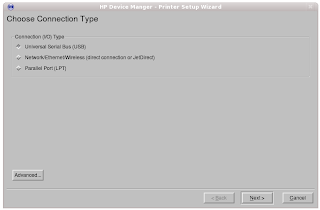
I choose the second option 'Network connection'. Then click on next.
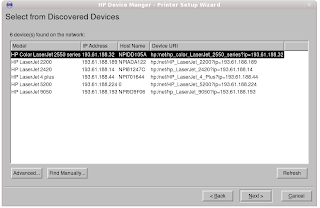
It lists the printers available on the network. I choose the the HP LaserJet 2200 that is assigned to me and then click next.
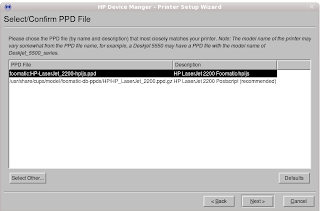
It asks me to select a suitable PPD file available in the list. Usually you should select the one that closely matches the description of the printer. In this case I retain the first selection.
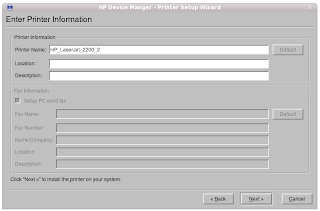
Here I add some description to my printer and click next. On the next screen it sends a test page for printer. It starts working !! I did not believe that the things would be this much simple. Because I remember spending days on getting my printer work on linux. I think those days are gone now. The life has certainly become more comfortable with linux.
Lets first see the system configuration.
$ uname -a
Linux localhost.localdomain 2.6.25.14-108.fc9.x86_64 #1 SMP Mon Aug 4 13:46:35 EDT 2008 x86_64 x86_64 x86_64 GNU/Linux
So, basically I am using FC9 with x86_64 processor. This much is good enough for us.
Check if cups daemon is running. You can check at System->Administration->Services->Cups. It should be running. You can also check this on console using following command:
$ sudo /sbin/chkconfig --list|grep cups
cups 0:off 1:off 2:on 3:on 4:on 5:on 6:off
So, Cups is running on run-level 3, 4 and 5. If it is not running, then you should make it run first. Its not dificult and following command should do the job.
$ sudo /sbin/service cups start
or
$ sudo /sbin/chkconfig --level 345 cups on
Now, check if hplip is available on your system.
$ rpm -qa|grep hplip
hplip-2.8.2-2.fc9.x86_64
hplip-gui-2.8.2-2.fc9.x86_64
In case they are not present, use Yum to get the required packages:
$ sudo yum install hplip hplip-gui
If HPLIP is already installed then try running hp-setup to configure your printer.
$ sudo hp-setup

I choose the second option 'Network connection'. Then click on next.

It lists the printers available on the network. I choose the the HP LaserJet 2200 that is assigned to me and then click next.

It asks me to select a suitable PPD file available in the list. Usually you should select the one that closely matches the description of the printer. In this case I retain the first selection.

Here I add some description to my printer and click next. On the next screen it sends a test page for printer. It starts working !! I did not believe that the things would be this much simple. Because I remember spending days on getting my printer work on linux. I think those days are gone now. The life has certainly become more comfortable with linux.
Sunday, July 6, 2008
Remote Access on Linux
VNC server and vncviewers are quite popular for accessing linux desktops remotely either from a windows or a linux client. I won't discuss much about them as a lot of information is available on web about this. I would rather give links to some webpages here:
Rather than explaining things, I would just write down few commands to get you started. I am assuming you are using Debian Etch 4.0.
$ sudo apt-get install vncserver
Best part is you can connect to a vncserver through an SSH tunnel using -via option with vncviewer. But install tightvncserver on the host machine. In order to use ssh tunnel, you need to provide username and password for ssh login. so the first password is for ssh login while the second password is for vncserver available in ~/.vnc/passwd. -Fullcolor option gives best display property for your vnc session.
[control@cube:]$ vncviewer -via swg@172.28.52.111 -Fullcolor insane:1
VNC Viewer Free Edition 4.1.1 for X - built Feb 26 2007 20:38:07
Copyright (C) 2002-2005 RealVNC Ltd.
See http://www.realvnc.com for information on VNC.
swg@172.28.52.111's password: ***
Sun Apr 27 12:24:43 2008
CConn: connected to host localhost port 5599
CConnection: Server supports RFB protocol version 3.3
CConnection: Using RFB protocol version 3.3
Password: ***
Sun Apr 27 12:24:45 2008
TXImage: Using default colormap and visual, TrueColor, depth 24.
CConn: Using pixel format depth 24 (32bpp) little-endian rgb888
CConn: Using ZRLE encoding
Sun Apr 27 12:24:52 2008
CConn: Throughput 20000 kbit/s - changing to hextile encoding
CConn: Using hextile encoding
Rather than explaining things, I would just write down few commands to get you started. I am assuming you are using Debian Etch 4.0.
$ sudo apt-get install vncserver
$ vncserver :1 -geometry 1024x768 -depth 24 -pixelformat rgb565

It might ask you to enter a password to be used by users to connect your system through vnc.
The first time vncserver is started up, it will also create a configuration file, in your home directory, called $HOME/.vnc/xstartup. Execute the follow to stop vncserver.
$ vncserver -kill :1
On your client,
$ vncviewer :1
Best part is you can connect to a vncserver through an SSH tunnel using -via option with vncviewer. But install tightvncserver on the host machine. In order to use ssh tunnel, you need to provide username and password for ssh login. so the first password is for ssh login while the second password is for vncserver available in ~/.vnc/passwd. -Fullcolor option gives best display property for your vnc session.
[control@cube:]$ vncviewer -via swg@172.28.52.111 -Fullcolor insane:1
VNC Viewer Free Edition 4.1.1 for X - built Feb 26 2007 20:38:07
Copyright (C) 2002-2005 RealVNC Ltd.
See http://www.realvnc.com for information on VNC.
swg@172.28.52.111's password: ***
Sun Apr 27 12:24:43 2008
CConn: connected to host localhost port 5599
CConnection: Server supports RFB protocol version 3.3
CConnection: Using RFB protocol version 3.3
Password: ***
Sun Apr 27 12:24:45 2008
TXImage: Using default colormap and visual, TrueColor, depth 24.
CConn: Using pixel format depth 24 (32bpp) little-endian rgb888
CConn: Using ZRLE encoding
Sun Apr 27 12:24:52 2008
CConn: Throughput 20000 kbit/s - changing to hextile encoding
CConn: Using hextile encoding
Connecting a Linux server from a windows client
There are two ways we can connect a linux machine from windows:
1. Using Putty to establish a ssh connection and exporting display using xmanager
2. Using VNC client to connect to vnc server running on linux machine.
I would describe both the methods as neatly as possible.
Putty+ Xmanager
1. Download "Xmanager" from this site.
http://www.netsarang.com/download/down_xme2.html
2. Install the Xmanager Enterprise 2.1 Build 0038 . In the serial
field type "evaluation".
3. Once installation is over, go to start -> all programs -> Xmanager
Enterprise -> xmanager-passive
4. Now run "putty.exe". Enter the IP of the ssh server you want to
connect. Click on connection -> ssh -> x11 on the left hand side bar
and on the right hand side click on "Enable X11 forwarding".
5. Now login to your ssh server and run any gui application.
VNC Server - client
1. Download realvnc viewer from this site. It would ask you to enter
user info. Don't enter anything and click on "proceed to download".
http://www.realvnc.com/products/free/4.1/winvncviewer.html
2. Download the following exe file and NOT the zipped one and put it on desktop.
VNC Free Edition Viewer for Windows
Stand-alone Viewer
Version 4.1.2
3. Double click on it. It would ask for Server. Enter following
your_vnc_server:1
4. Then it will ask for password only. Now enter the password provided to you.
5. Enter the password and you can the linux desktop.
Caution: First try to connect the vncserver from a linux desktop and make sure that it is working. Then only try from a windows machine.
1. Using Putty to establish a ssh connection and exporting display using xmanager
2. Using VNC client to connect to vnc server running on linux machine.
I would describe both the methods as neatly as possible.
Putty+ Xmanager
1. Download "Xmanager" from this site.
http://www.netsarang.com
2. Install the Xmanager Enterprise 2.1 Build 0038 . In the serial
field type "evaluation".
3. Once installation is over, go to start -> all programs -> Xmanager
Enterprise -> xmanager-passive
4. Now run "putty.exe". Enter the IP of the ssh server you want to
connect. Click on connection -> ssh -> x11 on the left hand side bar
and on the right hand side click on "Enable X11 forwarding".
5. Now login to your ssh server and run any gui application.
VNC Server - client
1. Download realvnc viewer from this site. It would ask you to enter
user info. Don't enter anything and click on "proceed to download".
http://www.realvnc.com/products/free/4.1/winvncviewer.html
2. Download the following exe file and NOT the zipped one and put it on desktop.
VNC Free Edition Viewer for Windows
Stand-alone Viewer
Version 4.1.2
3. Double click on it. It would ask for Server. Enter following
your_vnc_server:1
4. Then it will ask for password only. Now enter the password provided to you.
5. Enter the password and you can the linux desktop.
Caution: First try to connect the vncserver from a linux desktop and make sure that it is working. Then only try from a windows machine.
Subscribe to:
Posts (Atom)

 Posts
Posts

